Google Search Console: A Beginner's Guide for 2026
Google Search Console is a free Google tool that shows how your site performs in search: what you rank for, which pages are indexed, and what needs fixing. Here is how to set it up and use it.
Google Search Console is a free tool from Google that shows how your website performs in Google Search: the queries you rank for, how many people click, which pages are indexed, and what technical problems Google has found. It is the tool that used to be called Google Webmaster Tools, and every business with a website should have it connected. This guide walks a beginner through what it does, how to set it up, and how to actually use the reports to improve your SEO.
What is Google Search Console?
Search Console is Google's direct line to site owners. It reports on your presence in organic (unpaid) search results, using data straight from Google rather than a third-party estimate. That is what makes it different from paid SEO tools: this is the real picture of how Google sees your site.
It answers questions you cannot get anywhere else. What search terms bring people to you? Which of your pages has Google actually added to its index? Are there errors stopping pages from showing up? Is your site fast enough on mobile? If you only install one SEO tool, make it this one, because it is free and it comes from the source.
Setting up and verifying your site
Search console setup starts at search.Google.com/search-console with any Google account. You add your site as a property, then prove you own it. Google offers a few verification methods, and beginners get tripped up here, so here is the plain version.
- Domain property (DNS): you add a TXT record at your domain registrar. This covers every version of your site (www, non-www, http, https) in one go. It is the most complete option.
- URL prefix property: you verify one specific address, often using an HTML file upload, a meta tag in your site's head, or your existing Google Analytics or Tag Manager connection.
If you run a Canadian business on a .ca domain, DNS verification through your registrar is usually the cleanest route. Verification often completes within a few minutes, though DNS changes can take a few hours to register.
The Performance report
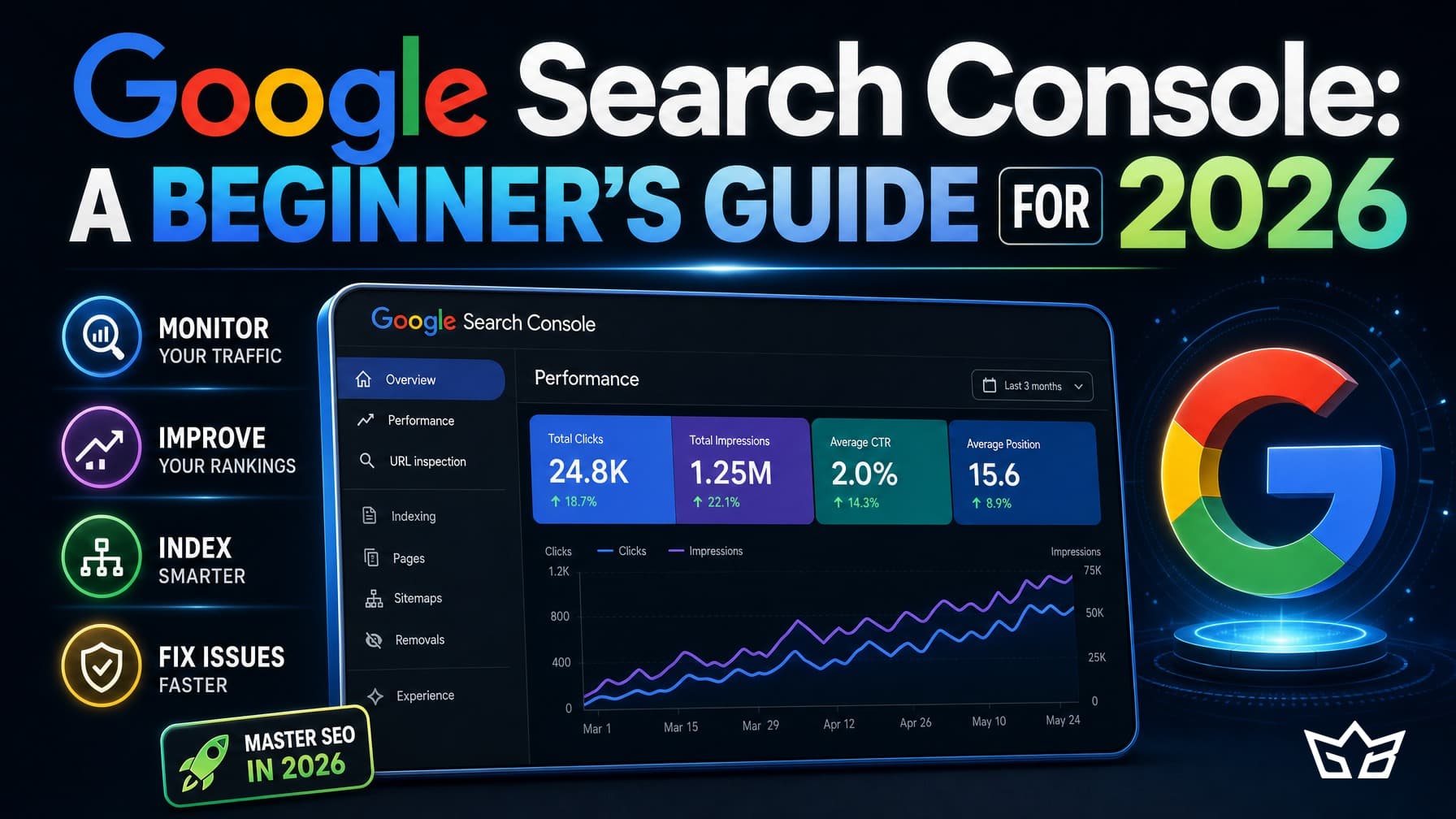
The Performance report is where most people spend their time, and for good reason. It shows four numbers over any date range you pick: clicks, impressions, average click-through rate, and average position. You can break those down by query, by page, by country, and by device.
This is how you find real opportunities. Look for queries where you get plenty of impressions but few clicks: those are pages ranking on page one or two that need a better title or a stronger match to what searchers want. Filter by country to Canada to see how you show up for the people who can actually become customers. This one report tells you what is working before you spend a dollar on anything else.
The Pages and indexing report
A page that is not indexed cannot rank, full stop. The Pages report (under Indexing) splits your URLs into indexed and not indexed, and it tells you why the not-indexed ones were left out. Common reasons include a noindex tag, a redirect, a canonical pointing elsewhere, or a page Google crawled but chose not to index yet.
Check this report whenever you publish something new or launch a redesign. If an important page sits in the not-indexed bucket, you can open the URL Inspection tool, see exactly what Google thinks, and request indexing. That nudge often gets a new page picked up within a day or two instead of waiting.
Core Web Vitals and enhancements
Core Web Vitals measure real-world page speed and stability: how fast the main content loads, how quickly the page responds to a tap, and how much things jump around while loading. Search Console groups your URLs into good, needs improvement, and poor, split by mobile and desktop. Google uses these signals as a ranking factor, and mobile matters most since that is how the majority of Canadians browse.
The Enhancements section reports on structured data you have added, such as FAQ, product, or review markup. If your markup has errors, this is where Google flags them. Fixing these will not rocket you up the rankings on its own, but it keeps you eligible for richer search results.
Submitting a sitemap
A sitemap is a file (usually sitemap.xml) that lists the pages you want Google to find. Submitting it in the Sitemaps report helps Google discover your content faster, which matters most for larger sites or ones that add pages often.
Most modern platforms, including Next.js sites, WordPress, Shopify, and Wix, generate this file automatically. You just paste the path into the Sitemaps report and submit once. After that, Google re-reads it on its own, and the report tells you how many URLs it discovered versus how many it indexed. A big gap between those two numbers is a signal to dig into the Pages report.
Using Search Console as an ongoing habit
Here is the honest part: Search Console is not a set-it-and-forget-it install. It is a monitoring tool, and monitoring only helps if you keep doing it. New pages fall out of the index. A theme update breaks your Core Web Vitals. A competitor overtakes you on a query you used to own. Google rolls out an update and your traffic shifts. None of that shows up unless someone is looking.
Treat it like checking your books. A steady rhythm of reviewing the Performance and Pages reports every week or two, acting on what is flagged, and watching closely after any big change is what keeps your SEO healthy. The gains you make slide backward if you stop paying attention, the same way rankings themselves do. This is day-to-day upkeep, not a project you finish.
Turning the data into action
Reading reports is not the same as improving. Once you spot a page with high impressions and low clicks, rewrite the title and meta description and watch the number move. When a page drops out of the index, find out why and fix it. If you want a wider picture of your site's technical health alongside this, run a free scan with our website audit tool and compare what it finds with what Search Console is telling you.
Search Console shows you the problems; the work is fixing them month after month. If you would rather have a team watching the reports and acting on them, see our website SEO service or get in touch and we will take a look at your setup.
Frequently asked questions
What is Google search console?
Google Search Console is a free tool from Google that reports how your website appears in Google Search. It shows the queries you rank for, your clicks and impressions, which pages are indexed, and any technical errors Google found. Every business with a website should have it connected.
Is Google search console the same as webmaster tools?
Yes. Google Webmaster Tools was renamed Google Search Console back in 2015. If you see older guides referring to webmaster tools, they mean the same product. The name changed because it is used by more than just webmasters now.
Is Google search console free?
Yes, Google Search Console is completely free with no paid tier. You only need a Google account and the ability to verify that you own the site. Google makes money from ads, not from this tool, so there is no cost to using every report.
How do I verify my site in search console?
Add your site as a property, then confirm ownership using one of Google's methods: a DNS record, an HTML file upload, a meta tag, or your Google Analytics or Tag Manager account. DNS verification covers your whole domain and is the most durable. Verification usually takes a few minutes to a few hours once the record propagates.
How often should I check search console?
For most small and mid-market businesses, a proper look every one to two weeks is enough, plus a quick check whenever you publish or redesign. Watch it more closely after a site migration or a Google update. It is ongoing work, not a one-time setup, because new errors and ranking shifts appear over time.
Reviewed by Bahaa Zuraik under our editorial policy.